BuyMeACoffee

Buy Me A Coffee
Mostrando las entradas con la etiqueta SQL Reporting Services. Mostrar todas las entradas

domingo, 13 de diciembre de 2015

ASP .NET 5 and Reporting Services: How to?

ASP .Net 5 is a big change in the way developers create applications, many APIs are new, many others are still not compatible so it forces developers to look for workarounds on their traditional implementations.
There has been a lot of discussion about integrating Reporting Services with MVC 6.

The traditional approach to generate reports using Reporting Services is to use the Report Execution Service which comes as part of SSRS(SQL Server Reporting Services), in a traditional ASP .NET application you just create a reference to the web service and you get a generated proxy client, which you can use to generate reports through code.

In ASP .NET 5 you don't get the "Add Web Reference" nor "Add Service Reference" menu items, if you try to add a reference to another project which is not a package type project you get an error message.


One way to overcome this kind of issues is to use an Azure WebJobs and Queues.
First we create a storage account, in this case I named it "ptireportsstg".


Then, on a MVC Controller that will generate reports I connect to the Storage Account and to a queue named "reportsrequestqueue", if the queue does not exist, I create it.


Then in the View of the Report I want to generate I set the parameters and proceed to create the report generation request.


Then the post action starts executing and it has the passed model filled with the parameters set before in the form.
This action creates a CloudQueueMessage based on the model received.


Once the WebJob received the cloud message it starts processing it.


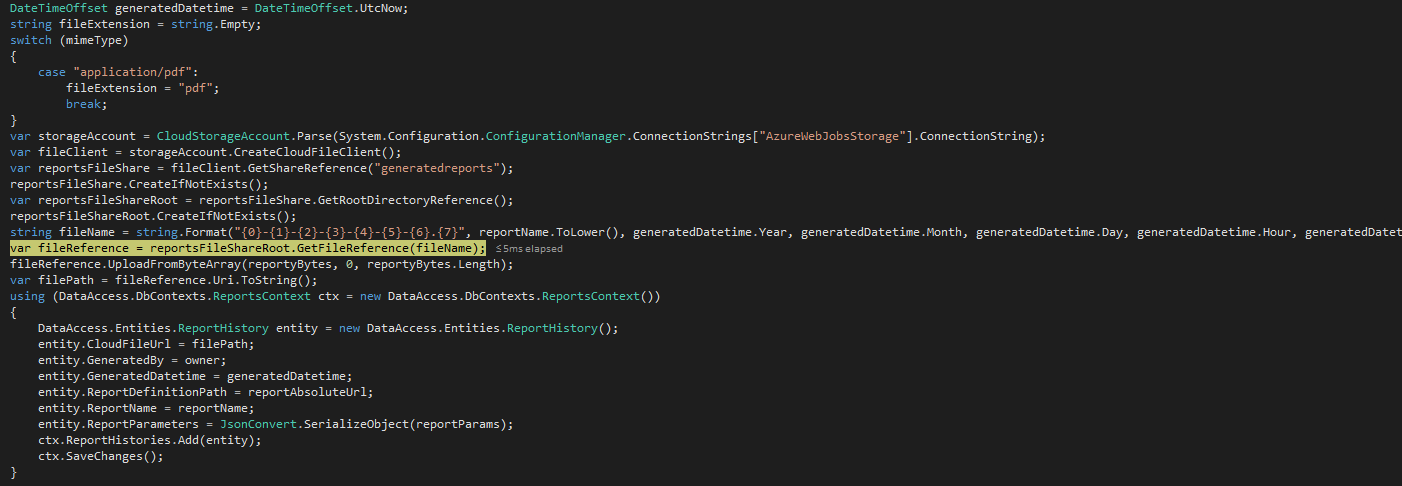
The LoadReport method is the common implementation which generated the report's bytes so we are not showing it, once we have all that we proceed  to save information about the generated report and to persist the report as an Azure Cloud File.


We save the generated report info along with its cloud file url in a table named ReportHistory.


Once we have that we can go to the list of reports, which read the information from the database.


Now we click on Download Report and it will proceed to read the Cloud File and download it.

We open the file and we have the expected contents.


Do you know of other solutions? Please feel free to share them in the comments and don't forget to

martes, 27 de octubre de 2015

Get To Know Your #Network with @Microsoft #Azure and #Office365

Getting to know your followers is very important, even more if you are running a business.
But where do you start, let's say you have 2000 followers.
You could start conversation with them 1 by 1, but if you are a small company where luxury of time is not an option, it could be very inefficient.

Image by Zigomitros Athanasios - Thor4bp on https://commons.wikimedia.org/wiki/File:Social_Network.png
Instead, you could scan your network profiles and based on their profile descriptions identify which have certain keywords you may be interested in, and maybe even their location.

Once you have this data, you can segment and check which sector has the biggest list of users.
With programming skills and cloud-based technologies such as Microsoft Azure you can do this easily.

Azure is the Microsoft response for Cloud Solutions, leveraging it's power gives you endless possibilities, and here is an example.

In Microsoft Azure you can create what is called Worker Roles, it's basically a virtual machine running background tasks (similar to Windows Services).

What do you do with it? Depends on what you need, but here is a simple example.

Let's say you want to identify which Twitter users are constantly following and unfollowing you, you can then use the Twitter API to check your current followers, store that information into a database hosted in Microsoft Azure, this information you can use it to identify if these stored users are still following you days later.

You can go even further and use it to get to know your network.
Let's say you store your followers list and their followers list(username and profile description)

Once you have done that you can create custom queries with specific filters and turn them into database views.

Try Microsoft Office 365 Today for FREE


Once the views are created you can use Power BI to create reports retrieving the data you want


Then you can schedule the Power BI reports to refresh daily at 6am, to have some updated data by the time people arrive at the office.

To create even more complex and customized reports, you could leverage the power of SQL Server Reporting Services, hosted in a virtual machine running on Microsoft Azure, create report templates published to a URL your team is able to access.
For example a report that gets a list of users and categorize them based on keywords found in ther profile (education, games, marketing, etc)


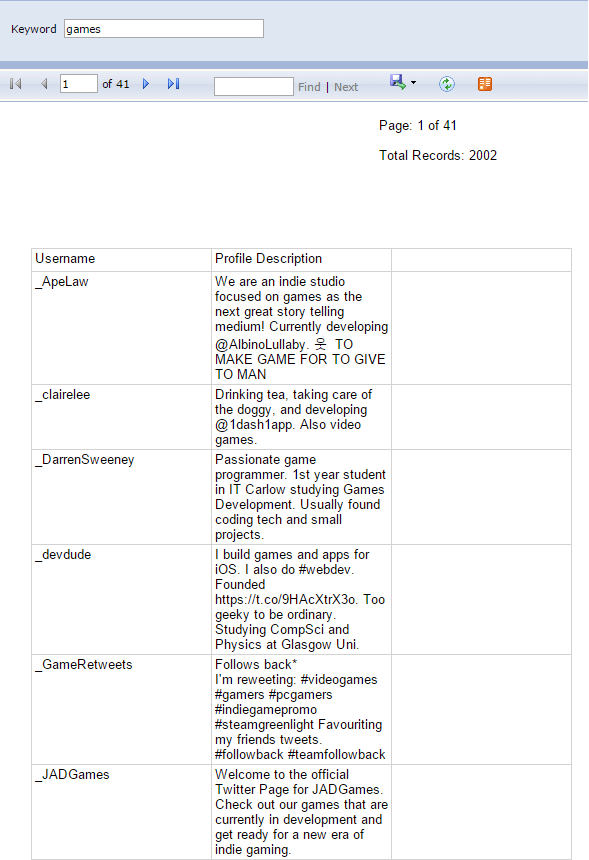
Or you can create a report requesting the user for a keyword


You can go even further and create subscriptions to reports you know you will need frequently, select how often you need those reports, and the file format and time of the day you want them.
Once you set that you could have for example a report for the keyword "marketing" every day at 9pm sent to your email.


Feel free to comment on the post.

If you want to know more about the potential of Microsoft Azure, Web Roles, Office 365, Reporting Services or other, feel free to contact us from our website or send an email to services@pticostarica.com

jueves, 11 de junio de 2015

Video games statistics using Web API 2 and SQL Server Reporting Services


Note: Remember you can click/touch over the images in order to enlarge them.

Implementing your own statistics is incredibly useful since you can customize and track all the data you want, you can track any action in your game and create reports based on the data you have captured, reports that will be very useful to analyze game status, players behavior and to make decisions based on your findings.

By combining SQL Reporting Services with Web API 2 you can create a cross platform system.
The only other required component is the actual client which will send the data, in Unity we can take advantage of the WWW class to build the message and post the data to the server.

First, in the server project, we implement a class to handle our data, in this case we created "GameSessionStatsModel", since we are tracking per session data.


Then we implement the actual Controller, we named it "GameStatsController"


We now proceed to implement the Post action


In this action we mark the parameter with [FromBody] because we have the data in the body of the message we receive, you could have it with [FromUri] instead in case you are sending the data in the url.

Now, if you are using Unity, you can take advantage of coroutines, and the WWW class


In this method, we create an instance of the WWWForm, we specify that the Content-Type is going to be in json format with the frm.headers["Content-Type"]
To add the field we need to send we use the .AddFields methods of the WWWForm instance object,
the name of the string must match the exact name of the properties in the class GameSessionStatsModel implemented before.
Then we build the url we need to send, by default Web API 2 will be [serverUrl]/api/[controller]
since our controller class is named "GameStatsController" our url will be [serverUrl]/api/GameStats

Note: replace serverurl with your correct url.

Then we create an instance of the WWW class, we send the url and the form as parameters in the constructor, and we use the yield keyword to execute the request and wait for a response to be received, since in our code we are constantly updating data, we also use WaitForSeconds, with the desired amount of seconds, in this case we are using 5 seconds for testing purposes.

Now, let's go to the reports.
Use the Business Intelligence templates to create a Reporting project in Visual Studio, and create a new empty report
Design Mode


Preview Mode


In this case we created a report to see how many sessions exist for each single platform we send data from.

Hopefully it has been useful to you.

Don't hesitate to contact us for our services:

US Phone: +1 (321) 200-0156
CR Phone: +(506) 8705-4494
Email: services@pticostarica.com